

Scheduled Arrival
A scheduled arrival brings entities in at exact times you specify, like appointments or incoming shipments. You can type the schedule by hand or import thousands of real arrival timestamps from a file.
Building a schedule by hand
Section titled “Building a schedule by hand”Open the Scheduled Arrivals Builder with the Open Schedule Builder button on the arrival’s panel. Each row is one arrival: Week #, Day, Time, and Quantity, which can be a number or a distribution. A row can also repeat: Repeat Every sets how many days apart it repeats, and First On Day sets the first day of the run it lands on. Use Add Row and Delete Selected to change the list, Download Template and Import from Excel to load rows from a spreadsheet, and + Add Logic on any row to give that specific arrival its own action logic (for example, to set an attribute on the entities it creates). The panel also offers Quick Add and Import / Export.
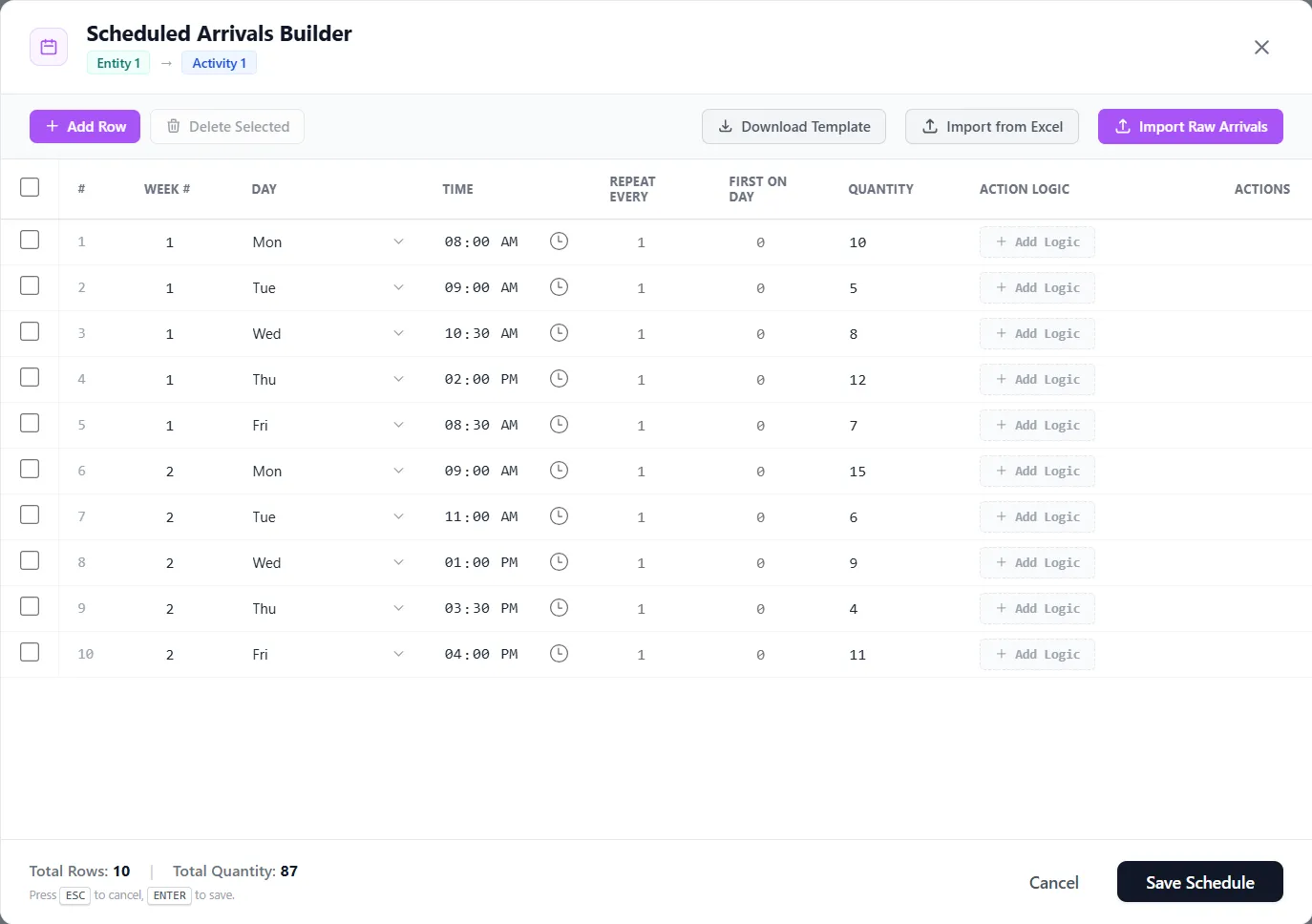
Importing arrivals from Excel or raw data
Section titled “Importing arrivals from Excel or raw data”To load real arrival data, use Import Raw Arrivals in the builder. It reads a file (or pasted text) of timestamps and converts them into Week / Day / Time rows, up to about a million.
Steps:
- Select the scheduled arrival, open the Scheduled Arrivals Builder, and click Import Raw Arrivals.
- (Optional) Template saves a ready-made spreadsheet with Timestamp, Quantity, and Codes columns.
- Choose your source: pick a CSV or Excel file, or switch to Paste and paste rows. CSV loads through a fast bulk path; Excel is parsed in place.
- Set the Date order (for example
MM/DD) so ambiguous dates are read correctly. - Under Column mapping, give each source column a field from its list: Ignore, Timestamp (marked with an asterisk, and required), Quantity, Codes, or an attribute (
a_...). Only Timestamp is required; the rest are optional.
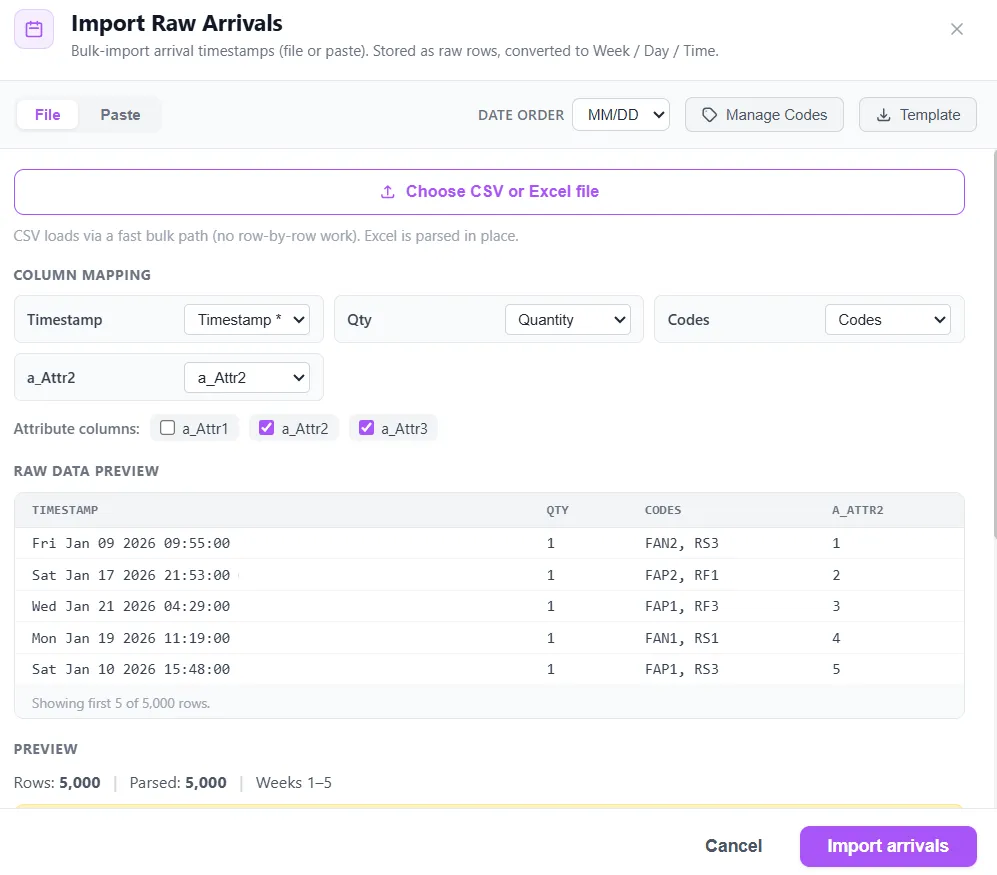
- (Optional) Manage Codes to map short codes in your data to attribute values (for example, a code that sets a processing time on the arriving entities).
- Review the preview: the parsed rows, the week span, and how many rows could not be read.
- Click Import arrivals. The imported data replaces any manual rows (a schedule is either typed or imported, not both), and it is saved with your model.
Reopening an imported route
Section titled “Reopening an imported route”Once a route has been imported, Import Raw Arrivals no longer opens a blank form. It opens on the data you already have: a summary line with the row count, the file it came from and the weeks it spans, then a sample of the stored rows showing each raw timestamp beside the Week, Day and Time it converted to, its codes, and the attribute values those codes resolved to.
| Control | What it does |
|---|---|
| Manage Codes | Opens this route’s codes. Saving there re-applies them to the rows already imported, rewriting the stored attribute values from the new codes, and the sample re-resolves in front of you. Columns you mapped directly are left alone. If two codes set the same attribute to different values, nothing is written and you are told which ones disagree. |
| View Imported Data | Opens the full read-only grid, so you can browse every row rather than the sample. |
| Import new file | Returns to the ordinary import form. The new data replaces every arrival already imported on the route, so you are asked to confirm before anything is written. |
| Done | Closes the window and changes nothing. |
| Clear | Deletes the imported data. Read the next paragraph first. |
Clear asks you to confirm, then permanently deletes every imported arrival on this route and returns it to an empty manual schedule, which brings in no entities. This cannot be undone. Nothing is kept in the model to restore from, so the only way back is to import the file again. It touches only the route you are looking at, and the route’s codes are left in place, ready for the next import. The window stays open and confirms what it did, and Done closes it.
Action logic
Section titled “Action logic”A scheduled arrival’s route-level Action Logic tab opens empty (“No fields for this tab”). Instead, each row can carry its own action logic through + Add Logic, which runs on the entities that row creates.
LegacyHow this worked in the previous version
A scheduled arrival causes a quantity of entities to arrive at a storage or activity at set times such as appointments or incoming shipments. Multiple scheduled arrivals for the same time occur in the order in which they are defined.
**Arrivals [Time, Quantity] **The list of defined arrivals listing the quantity, the week number, the day of the week, and the time the arrivals begin to come into the system.
New This button allows you to create a new arrival based on the data held currently in the edit fields of the dialog.
**Delete **Allows you to delete the selected entry from the Arrival list.
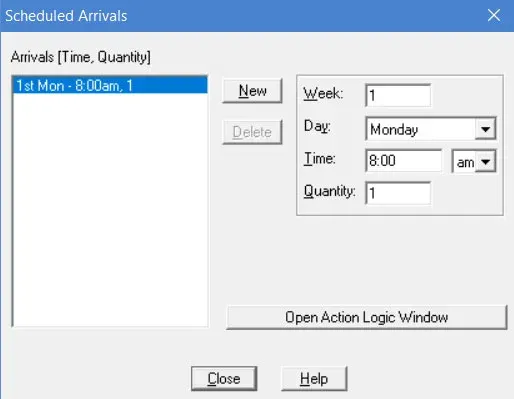
Week **This is the week in the simulation when the arrivals are to occur (numbered from 1 in ascending order).
**Day **This is the day of the week on which the entities are to arrive.
**Time **This is the time of day that the arrival occurs. If more than one arrival is scheduled for the same time, the arrivals will occur in the order in which they were defined.
**Quantity **The number of entities to arrive at the scheduled time.
**Action **Although not required, you may enter Action logic for each scheduled arrival. This is useful for assigning a value or descriptor to an attribute at the time of arrival based on the particular arrival entry in the dialog. Select the arrival in the Arrivals list above and enter the logic in the Action text box. To learn more see Action Logic.
How To - Define an arrival schedule
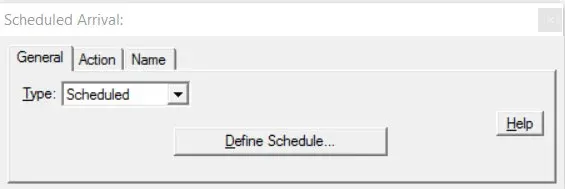
Section titled “How To - Define an arrival schedule”- Click on the Define Schedule button to display the Scheduled Arrivals dialog. A default arrival is automatically created as shown on the previous page.
- To create an additional arrival click on the New button. (Edits to the quantity and time fields are updated to the currently selected arrival once you move to another field or press New.)
How To - Read in an arrival schedule from outside files
Section titled “How To - Read in an arrival schedule from outside files”-
Create scheduled arrivals with a quantity of zero for the number of arrivals anticipated.
-
From the Tools menu select Export Data. Export the data to the chosen application.
-
Open the exported file. Modify the Excel or Access File by adjusting the desired parameters and save.
-
Press the file import button to import the changed data into ProcessModel.
A Note About Time
Section titled “A Note About Time”When you use the Daily Pattern arrival or Scheduled Arrival, you must understand that statistics, especially resource statistics, may be affected due to the way the clock works in ProcessModel. Each ProcessModel simulation begins at 12:00 a.m. (midnight) on Monday morning of the first week. Therefore, Daily Pattern or Scheduled arrivals may skew statistical results, especially with regard to resource and input and output queue utilization. The solution is the use of Shifts in conjunction with your Daily Pattern or Scheduled arrivals. For more information, see Schedules-Shifts & Breaks.
The maximum number of weeks allowed for scheduled arrivals is 213.