

Backups
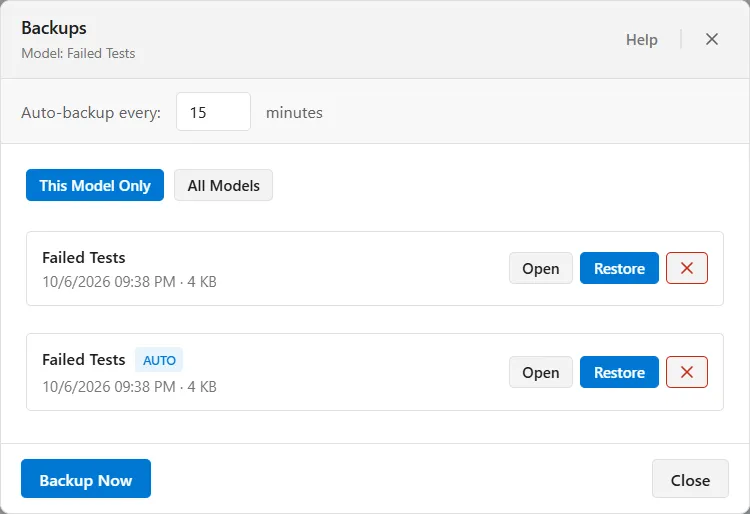
ProcessModel keeps its own copies of the models you work on, on a timer and on demand, so there is something to go back to when a model goes wrong between saves. Open File ▸ Backups to take one, see what has been kept, and bring one back.
Backups are held by ProcessModel itself rather than beside your model file, so they are there even for a model you have never saved. They do not travel with a model you send to someone else.
When a backup is taken
Section titled “When a backup is taken”Backup Now, at the bottom of the window, takes one immediately and adds it to the list under the model’s name.
The rest are automatic. Auto-backup every, at the top of the window, sets how often, anywhere from 1 to 60 minutes, and it starts at 15. It is a program setting rather than a model setting: it applies to every model you work on, and a new interval takes effect without restarting ProcessModel.
Two things about the automatic ones are worth knowing. Nothing is taken while the canvas is empty, so a fresh session does not fill the list with blank models. And they are skipped when the drive is very low on space, where Backup Now always runs.
Automatic backups carry an AUTO tag in the list. The ones you took yourself do not.
Finding a backup
Section titled “Finding a backup”All Models lists every backup ProcessModel is holding, newest first, whichever model each one came from. This is the view to browse.
This Model Only narrows that to the open model’s own backups, newest first, however much the model has changed since. It is the view the window opens on.
Each row gives you the model’s name, whether it was automatic, when it was taken, and how big it is. Backups are cleared out for you: ProcessModel keeps the newest 10 backups of each model and deletes anything older than 30 days, after every backup and every time it starts. The ✕ at the end of a row deletes a backup yourself, after asking you to confirm.
What comes back
Section titled “What comes back”This is the part to be clear about before you rely on a backup.
A backup holds the whole model, and both Restore and Open bring all of it back: every shape and connector, the settings held on them, and everything defined for the model as a whole, including its variables, attributes, arrays, scenarios, process tables, shift schedules, saved distributions, simulation options and any protection. The model is loaded the same way File ▸ Open loads a saved file, so nothing arrives empty.
So a backup is a reliable way to put a model back as it stood at an earlier moment: a shape deleted, a set of connections rerouted, a definition changed or removed. It is still the safety net between saves rather than a replacement for them, because your own saved file is the version you chose to keep. Save early.
Restore and Open, side by side
Section titled “Restore and Open, side by side”| Restore | Open | |
|---|---|---|
| What it does | Replaces the model you have open with the backup, keeping the model’s own file | Replaces the model you have open with the backup, as a model of its own |
| Before it runs | Asks you to confirm, then asks about unsaved changes in the current model | Asks about unsaved changes in the current model first |
| Afterwards | It cannot be undone, and it clears Undo. Save writes back to the same file | Arrives named <name> (restored), unsaved and with no file of its own, so Save asks you where to put it |
Use Restore when the model you have open is the one you want to put back to an earlier version. Use Open when you want the backup as a model of its own, with no file yet. Both replace the model you have open, so save it first if you want to keep it.
Related
Section titled “Related”- Protect Model for locking a model with a password.
- Demo Models for the ready-to-run examples, which open the same way a backup does.
- Best practices for model building for the habits that keep a model recoverable in the first place.