

Import legacy models and Visio drawings
File ▸ Import brings a model made somewhere else into ProcessModel: a model package from the earlier version, or a Visio drawing. You choose one file, the window reads it at once, and a report lists what it found, and what was changed or is missing, before anything is added to the canvas.
How to import
Section titled “How to import”- Start a new model with File ▸ New, so the canvas is empty.
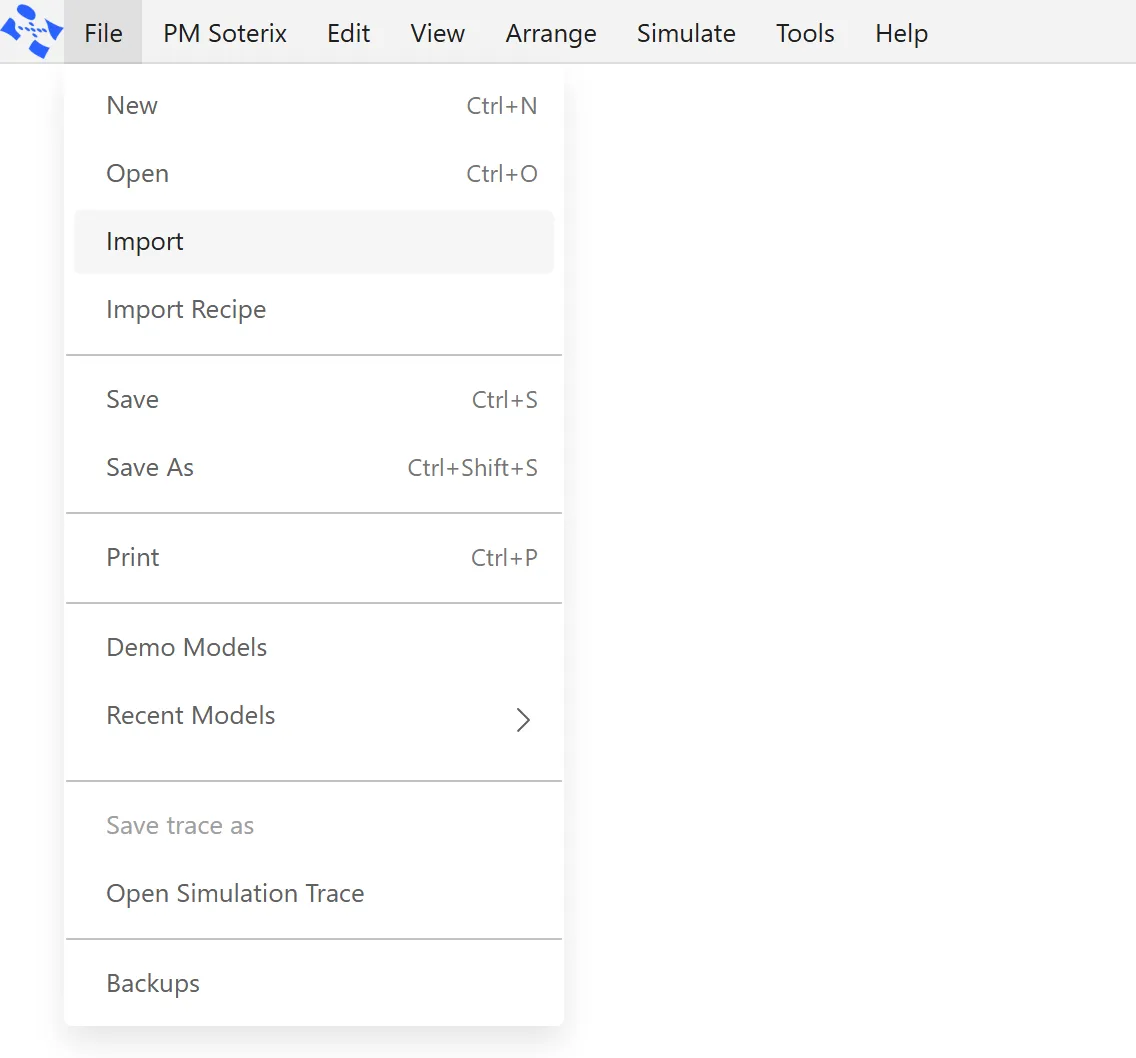
- Open File ▸ Import.
- Press Choose package or drawing and pick your file. The file window offers model packages and Visio drawings only.
- Read the report. The window shows it as soon as the file is chosen, and it differs for a package and for a drawing. Both are described below.
- Press Import. The window closes and the model opens as a new model that is not saved yet. A message confirms it, for example Imported Hearing.
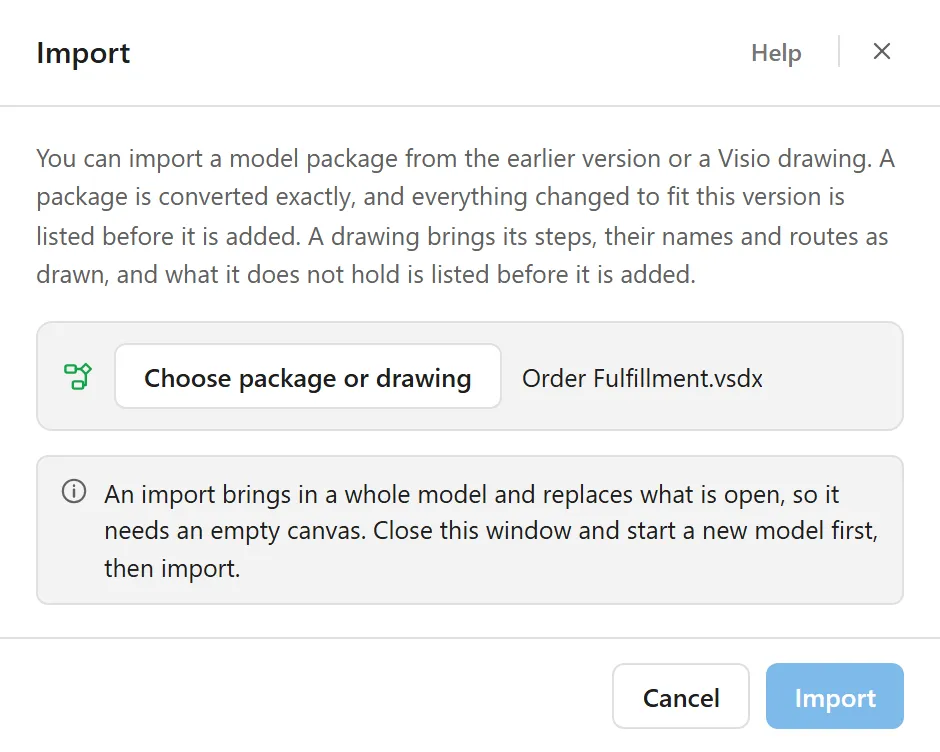
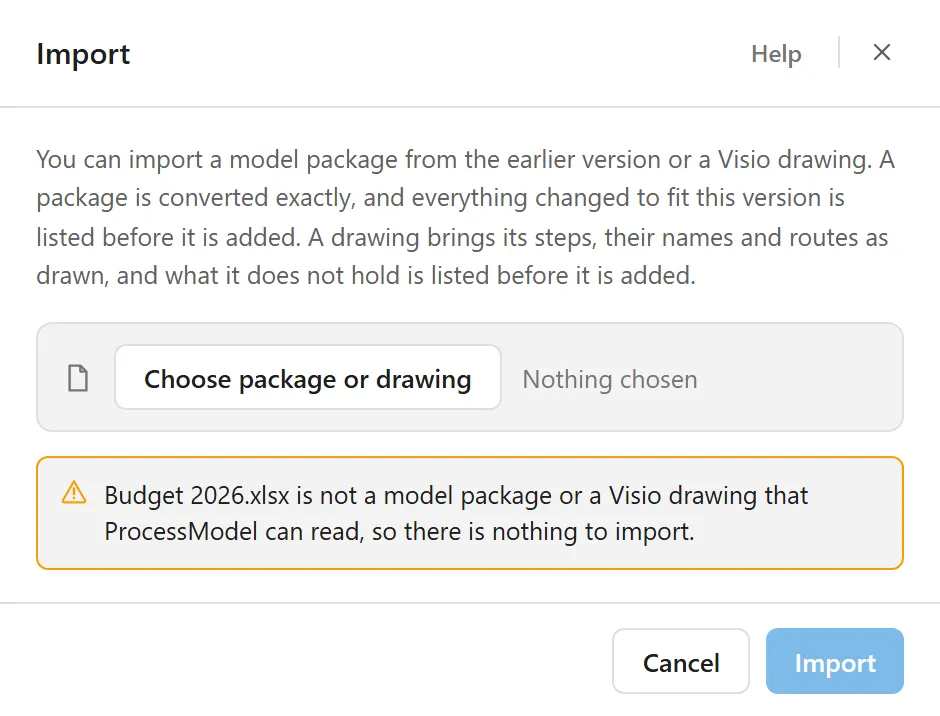
An import replaces what is open, so it only runs on an empty canvas. If a model is open when you choose a file, nothing is read and Import stays dimmed. The window says why:
The Import window
Section titled “The Import window”The window opens with an explanation, one button, and a line that says which file is chosen. The explanation reads:
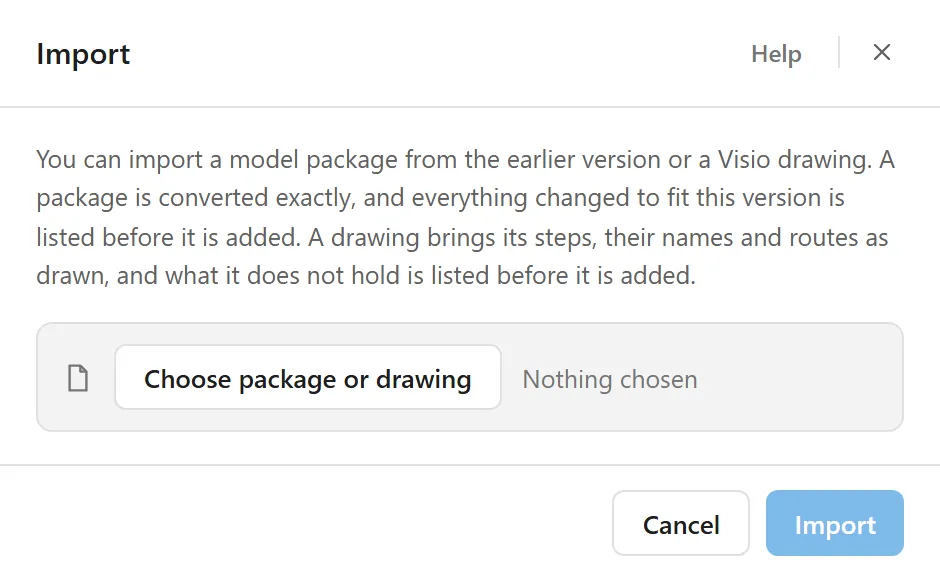
You can import a model package from the earlier version or a Visio drawing. A package is converted exactly, and everything changed to fit this version is listed before it is added. A drawing brings its steps, their names and routes as drawn, and what it does not hold is listed before it is added.
- Choose package or drawing picks either kind. Nothing chosen shows beside it until a file is picked, and the file’s name takes its place afterwards.
- The file you choose decides what the window shows next.
- Import stays dimmed until a file has been read.
- Cancel, the close button at the top right and Esc close the window without importing anything. A click outside the window does nothing, so a stray click cannot cost you a converted model.
- Help, at the top, opens this page in your browser.
A model package
Section titled “A model package”Packages use the .spg extension. A package holds the model, its working-hours files and sometimes a companion spreadsheet, so nothing else is asked for. Every other file is found inside it, and anything the model names that the package does not hold is reported rather than chased. If a package holds more than one model, the largest is used.
A package is converted exactly, so the same package always produces the same model. It is converted as soon as you choose it, and the window widens to show the report.
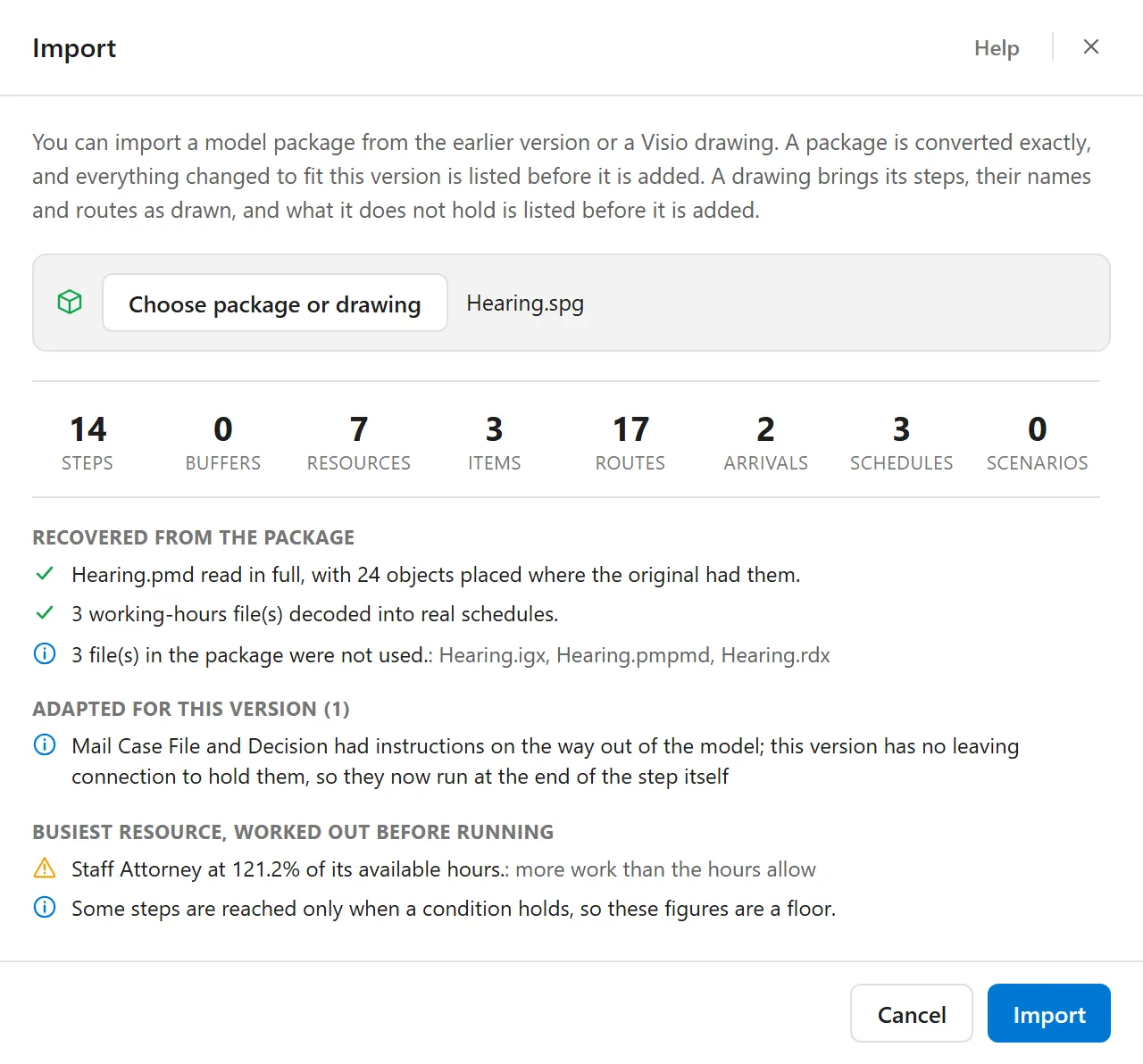
Across the top are eight counts: Steps, Buffers, Resources, Items, Routes, Arrivals, Schedules and Scenarios. Steps are the activities of the model and Items are its entities. Under the counts come the sections below, and each one appears only when it has something to say.
| Section | What it tells you |
|---|---|
| Recovered from the package | The model read in full, and how many objects were placed where the original had them. The working-hours files decoded into real schedules. The size of any appointment books. Files in the package that were not used, by name. A spreadsheet in the package, which is used for cross-checking only: the model file wins on any disagreement. |
| Named by the model but not in the package | Files the model names that the package does not hold, and working-hours files that could not be recovered. |
| Adapted for this version | Everything changed to fit this version, with the number of changes in parentheses. Each kind of change is one line, and a change that happens many times is one line that starts with how many. One more line counts the changes made to step instructions. |
| Scenario settings not carried | Scenario settings that could not be carried, each with its reason. A scenario can only change a step, a buffer or a resource, so a setting that is used on a connection, or that nothing uses, stays out. A scenario that would change nothing is listed too, and up to six lines are shown. |
| Busiest resource, worked out before running | The resource carrying the heaviest load, as a percentage of its available hours, worked out before anything is run. It shows in amber when the work is more than the hours allow. A note says when the figure is a floor, because some steps are reached only when a condition holds. |
| Worth knowing | What will affect how the model runs. When a package has stores, a note says they came across as queues, and that a queue holding thousands of items at once runs slower. |
Each line carries a mark: a green check for what was read in full, a blue information mark for something worth knowing, and an amber warning for something that was lost or needs a second look. When the report is longer than the window shows, it scrolls.
When you press Import, the model keeps its own name and the places its shapes had.
What converts
Section titled “What converts”Most of a model comes across cleanly and is ready to run:
- Entities and activities, with their positions on the canvas preserved.
- Storages, which become buffers and queues.
- Resources, including hourly cost.
- All routing: percentage, conditional, create, attach, detach, renege, and alternate.
- All arrival types: continuous, periodic, scheduled, daily pattern, and ordered (reorder).
- Attributes, including enumerated attributes, which become text.
- Variables.
- Scenario settings, resolved to their values, and any named scenarios, which are imported turned off.
- Run length.
- Shift schedules, including breaks, split shifts, and overnight shifts.
- Distributions and action logic.
What to check afterwards
Section titled “What to check afterwards”A few things need your eye once the model is on the canvas:
- Else routes. The connection taken when no other condition holds has no equivalent in this version, so it arrives as an ordinary route and may need a condition of its own.
- Batching. A step that gathers a number at a time keeps that setting, carried across for review. This version batches with a dedicated batching step, so it is not rebuilt for you.
- Costs. A resource’s hourly cost comes across. Every other cost comes across as 0: a step’s hourly and activity cost, an item’s initial and waiting cost, a resource’s cost per use and a route’s cost per move. Enter them again.
- Ordered arrivals. A buffer that an ordered (reorder) arrival fills needs room for the reorder level plus the order quantity, or a delivery will not fit. Check its capacity.
- Report statements. This version has no statistics report, so a Report statement in step instructions is left out and counted in the report.
- WAIT. A standalone WAIT, one that is not a WAIT UNTIL, is commented out so the rest of the instructions keep running.
- OwnedResource() and Animate(). Neither has an equivalent here. They are left as written, so look at any step that used them.
- Action logic on a continuous arrival is not carried across.
- Subcharts are not brought in.
How the model arrives
Section titled “How the model arrives”- No protection. An imported model starts with no protection and is not read only. To protect it, use Tools ▸ Protect Model. See Protect Model.
- Large appointment books. A scheduled arrival with a very large appointment book keeps its appointments in the model’s arrivals table instead of inside the model, so the model stays small. The report says how big the books are, and there is nothing for you to do. See Scheduled arrival.
- Arrays. The arrays your step instructions use are declared for you, with the name, type and size they had, from the array definitions the package keeps beside the model. Their values are not carried, so each array arrives with the default value in every cell. An array that no step instruction uses is not brought in. See the Arrays tab of the Logic Builder.
A Visio drawing
Section titled “A Visio drawing”A Visio drawing is a .vsdx file. It shows how a process is laid out, but not the things a simulation needs in order to run it, so ProcessModel brings in what the drawing holds and tells you what it does not.
What it brings. Its steps, their names and the routes between them, as drawn. Names come from the text on each shape, and text on a connector stays with its route. A shape drawn as a waiting line becomes a queue.
What it does not hold. Times, distributions, resources, shifts, wages, items that leave partway and arrivals. Each one starts at the ProcessModel default, for you to fill in after the import. The window lists them under Not in the drawing before anything is added.
The drawing is read as soon as you choose it, and the window widens to hold two sides.
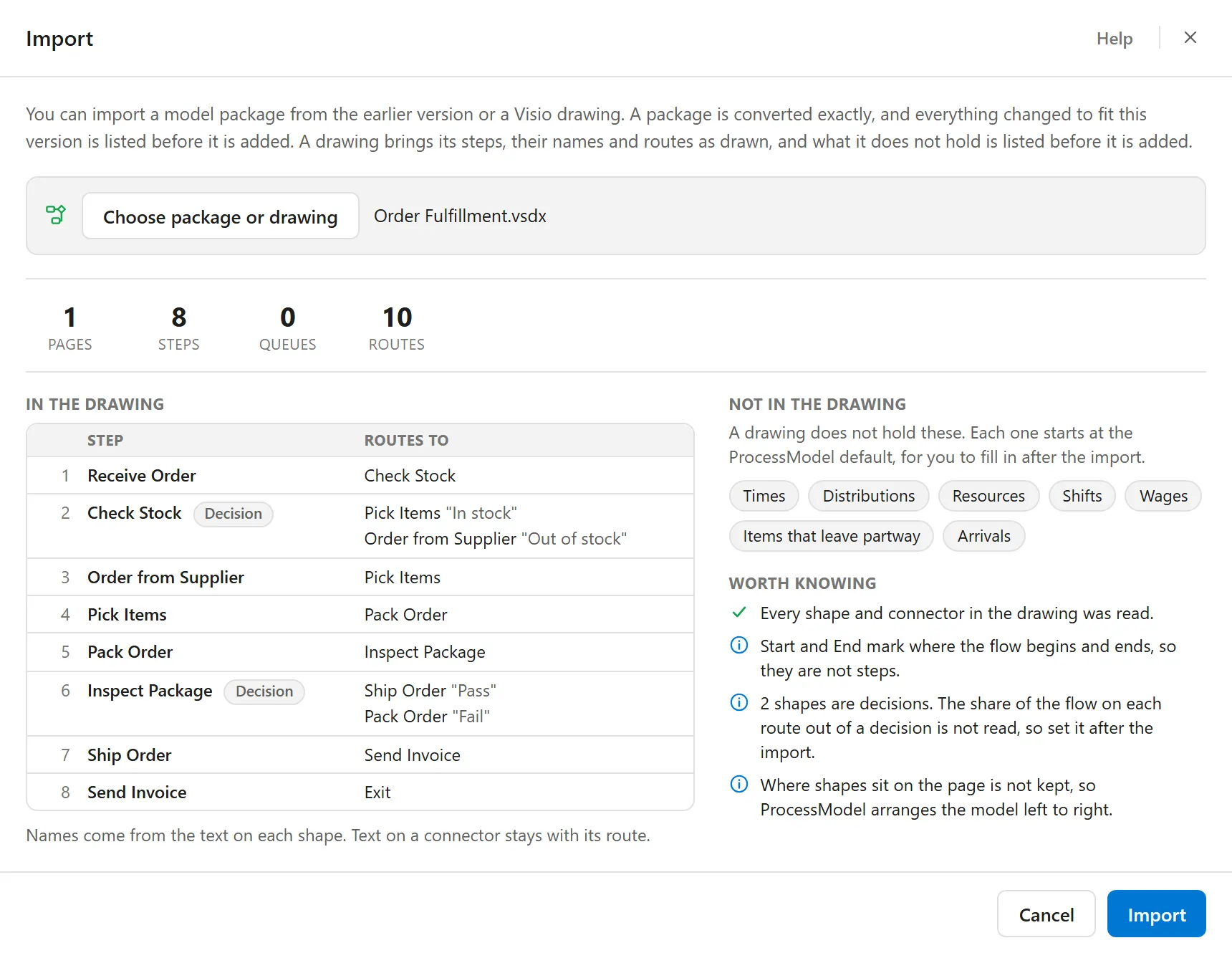
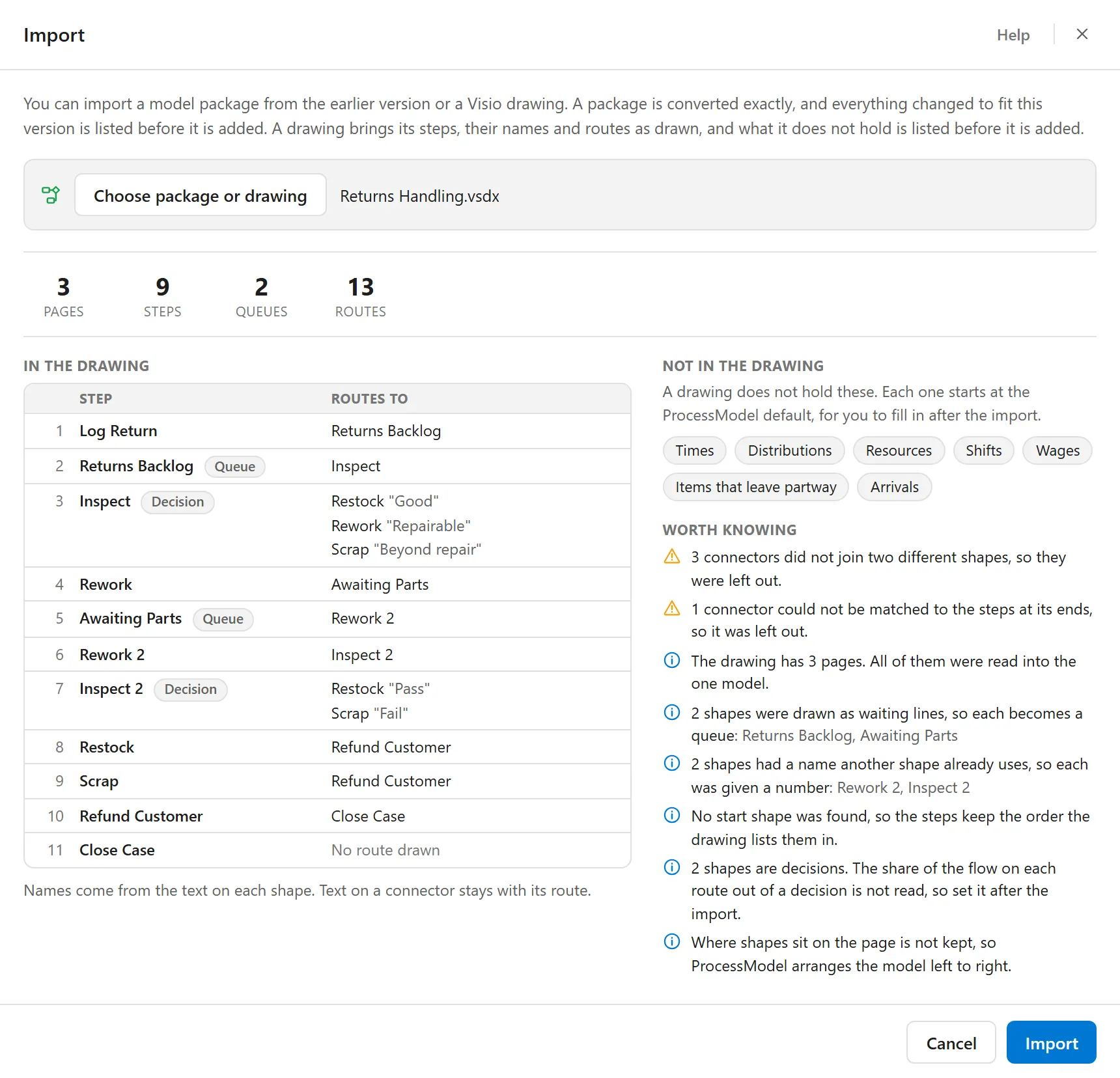
On the left, In the drawing. Four counts: Pages, Steps, Queues and Routes. A drawing counts its waiting lines as Queues, as the palette does, where a package counts the same shapes as Buffers. Under the counts, every step is listed by name, in the order they will arrive, with the routes that leave it. A step that makes a choice carries a Decision tag, with the text on each connector beside the step it leads to. A step drawn as a waiting line carries a Queue tag, a route into an End shape reads Exit, and a step that no route leaves reads No route drawn.
On the right, Not in the drawing and Worth knowing. Not in the drawing lists the seven things above as a row of small labels. Worth knowing says how this drawing was read.
Worth knowing
Section titled “Worth knowing”When nothing was left out or renamed, Worth knowing opens with a green check: Every shape and connector in the drawing was read. The notes that can follow are these.
In amber, for what was left out:
- 3 connectors did not join two different shapes, so they were left out.
- 1 connector could not be matched to the steps at its ends, so it was left out.
In blue, for what is worth knowing:
- The drawing has 3 pages. All of them were read into the one model.
- 2 shapes were drawn as waiting lines, so each becomes a queue, with their names after it.
- 2 shapes had a name another shape already uses, so each was given a number, with their names after it.
- No start shape was found, so the steps keep the order the drawing lists them in.
- 2 shapes are decisions. The share of the flow on each route out of a decision is not read, so set it after the import.
- Start and End mark where the flow begins and ends, so they are not steps.
- Where shapes sit on the page is not kept, so ProcessModel arranges the model left to right.
The numbers in these notes are examples. Each note counts what the drawing held, and is worded for one when there is exactly one. The note about the arrangement is always there.
A drawing makes a new model, so like a package it waits for an empty canvas. When you press Import, the model opens as a new model that is not saved yet. It takes the name of the drawing’s file, and the steps are arranged left to right. A message confirms it, for example Imported Order Fulfillment.
If the report is taller than the ProcessModel window allows, the middle of the window scrolls while the title and the buttons stay where they are.
If a file cannot be imported
Section titled “If a file cannot be imported”When there is nothing the window can import, it says so in a note edged in amber, and Import stays dimmed. These are the sentences, with a sample file name in each:
| When | What the window says |
|---|---|
| A file that is neither a package nor a drawing | Budget 2026.xlsx is not a model package or a Visio drawing that ProcessModel can read, so there is nothing to import. |
| A drawing with no pages | Floor Plan.vsdx holds no drawing pages, so there is nothing to import. |
| A drawing with no shapes | Blank Flowchart.vsdx holds no shapes that can become steps, so there is nothing to import. |
| A file named as a package that is not one | That file is not a legacy ProcessModel package. A .spg package is a compressed archive; this file does not start like one. |
| A file the computer cannot read | That file could not be read, followed by the reason the computer gives. |
| A package over the size limit | Whole Plant.spg is 120.4 MB, which is over the 100.0 MB limit. |
A package that holds no model is refused with a message that says so. So is a package of which only a small part can be understood: the message says how much was understood, and nothing is changed.
The first of these, as the window shows it, with nothing chosen and Import dimmed:
Related
Section titled “Related”- Import Recipe builds a model from a recipe you paste. It has its own entry, File ▸ Import Recipe, and its own window.