

Configure AI
ProcessModel’s AI features, Build with AI, Edit with AI, and AI Analysis, connect to an AI provider of your choice. You set this up once. Your key is stored securely on your own computer and is never shared with ProcessModel.
Set up a provider
Section titled “Set up a provider”- From the welcome screen, open Settings, then Configure AI.
- Pick a provider (such as Anthropic, OpenAI, Google, xAI, or a Local LLM you run yourself) and click Get an API key. This opens the provider’s site, where you sign up and create a key.
- Paste the key into that provider’s card and click Save and test connection. ProcessModel saves the key and checks that it works.
- Watch the status light: it turns green when the key is verified and ready. If it turns red, the key or the account has a problem; the key stays saved so you can fix it and test again.
- Optionally choose a model for the provider from the list, and set one provider as your default.
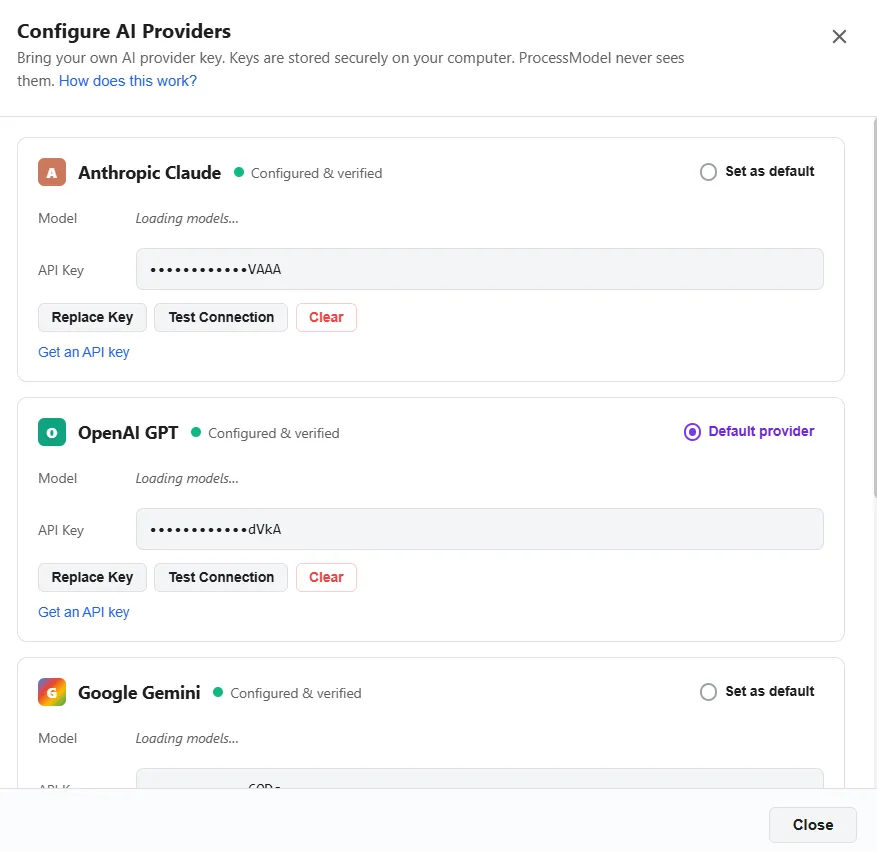
Once a provider shows green, the AI features are ready. See Build with AI to create and edit models, and AI Analysis to interpret your simulation results.
Use a local model server
Section titled “Use a local model server”Instead of a cloud provider, you can connect a Local LLM: a model that runs on your own computer or network. In the usual case it needs no key, and nothing you send ever leaves your machine.
Several local model servers work with ProcessModel. Common choices, with the port each uses by default, are Ollama (port 11434), LM Studio (1234), llama.cpp (8080), and vLLM (8000). If you are new to running models yourself, Ollama is the easiest place to start.
Setting one up differs a little from a cloud provider:
- On the Configure AI screen, pick the Local LLM card.
- Enter your server’s address instead of a key. Most local servers ship unauthenticated, so leave the key blank unless yours needs one.
- Enter or pick the model name you want to use.
- Click Save and test connection and watch the status light, the same as any other provider. It turns green once your server answers.
You can set your local model server as your default provider, just like a cloud one.
To build a model with AI, use a tool-capable instruct model of about 14B parameters or larger, with a 32K context window. Smaller models still work well for chat, help, and analyzing your results.
Do I have to use AI?
Section titled “Do I have to use AI?”No. The AI features are optional. If you would rather not use them, or you cannot reach the internet, you can build and run models entirely by hand, and you can leave AI unconfigured or skip installing it during setup.
You also do not need the cloud to use AI. A local model server gives you the full AI features with no internet connection and without any data leaving your computer, which suits private or offline environments.