
Decision
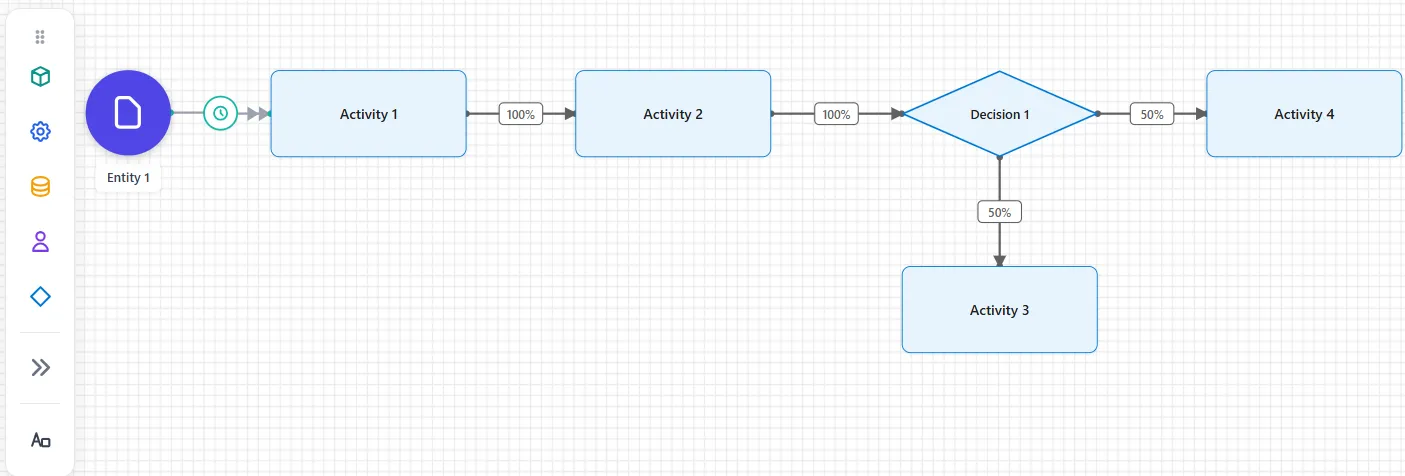
A Decision is a branch point: a diamond-shaped step whose job is to send each entity down one of several paths. It is created with no processing time and with a capacity high enough that it never restricts flow, so entities pass straight through and split according to the rules on its outgoing routes.
Adding a Decision
Section titled “Adding a Decision”There are four ways to add one, and they all produce the same thing with the same starting settings:
- Drag the Decision shape from the palette down the left side of the canvas onto the workspace.
- Hover over a node and click one of the round + buttons on its sides, then choose Decision. The new Decision arrives already connected to that node.
- Drag from one of those + buttons and release on empty canvas, then choose Decision from the menu that opens.
- Right-click an empty part of the canvas and choose Add Decision.
Each one is named Decision 1, Decision 2, and so on as you add them.
A Decision is an activity
Section titled “A Decision is an activity”The diamond is a shape, not a separate kind of element. What you get is an ordinary activity drawn as a diamond, which has two consequences worth knowing:
- It shows only the General and Logic tabs of an activity. The Cost, Shift, Triggers and Seed tabs are hidden, so there is no cost or shift to set on a Decision. Its name, processing time and logic are where you would find them on a normal step.
- It appears in the Output Report as an activity, listed under its own name. There is no separate section for decisions, so look for Decision 1 among the activities.
Processing time and capacity
Section titled “Processing time and capacity”A new Decision is set up to stay out of the way of the flow.
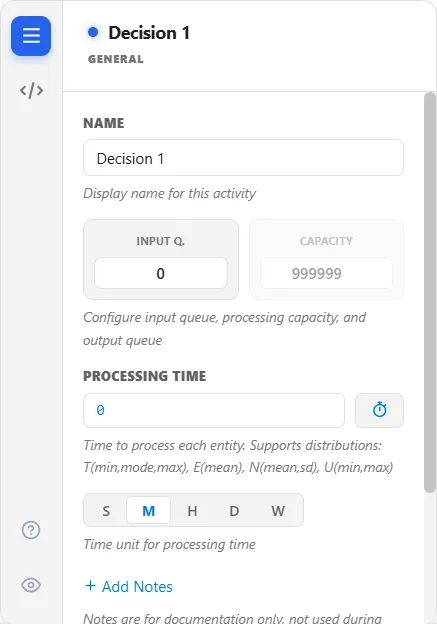
Processing Time is zero, so an entity spends no time at the branch. Capacity is fixed at 999,999 and grayed out (“Capacity is fixed and the output queue does not apply”), so however many entities reach the branch together, none of them waits for room at the diamond. Input Q. can be edited and starts at 0, and there is no Output Q. box.
Because the capacity cannot be changed, the Decision itself never restricts flow. If you want a branch point that holds entities back, use an ordinary activity with the capacity you need, and put the routes on it.
Setting the branches
Section titled “Setting the branches”A Decision does not carry the branching rules itself; you set them on its outgoing routes, exactly as on any step. Draw a route to each destination, then choose its Route Type to say how entities divide:
- Percent to send a share down each path.
- Conditional to route on a rule, such as an attribute value, with the first matching path winning.
Any of the routing types work here. The diamond simply marks the spot on the diagram where the flow splits.
When to use one
Section titled “When to use one”Reach for a Decision when you want the branch point to read clearly on the diagram. Functionally it is the same as adding percentage or conditional routes to a normal activity’s outputs, but the diamond keeps a busy model easy to follow. If you need the branch to take time or hold a resource, give the Decision a processing time like any other activity.