
Impact Analysis
Impact Analysis points you straight at the biggest opportunities in a process, so you cut the waste that matters instead of guessing.
Value-added, required, and waste
Section titled “Value-added, required, and waste”Every minute an item spends in the process falls into one of three buckets:
- Value-added (VA): work that directly creates value.
- Required non-value-added (RNVA): necessary steps that do not add value on their own, such as setup or a required inspection.
- Non-value-added (NVA): pure waste, mostly waiting.
Impact Analysis breaks every activity down this way and ranks them, so the activities with the most non-value-added time, your biggest time-wasters, rise to the top.
The Hot Spots chart
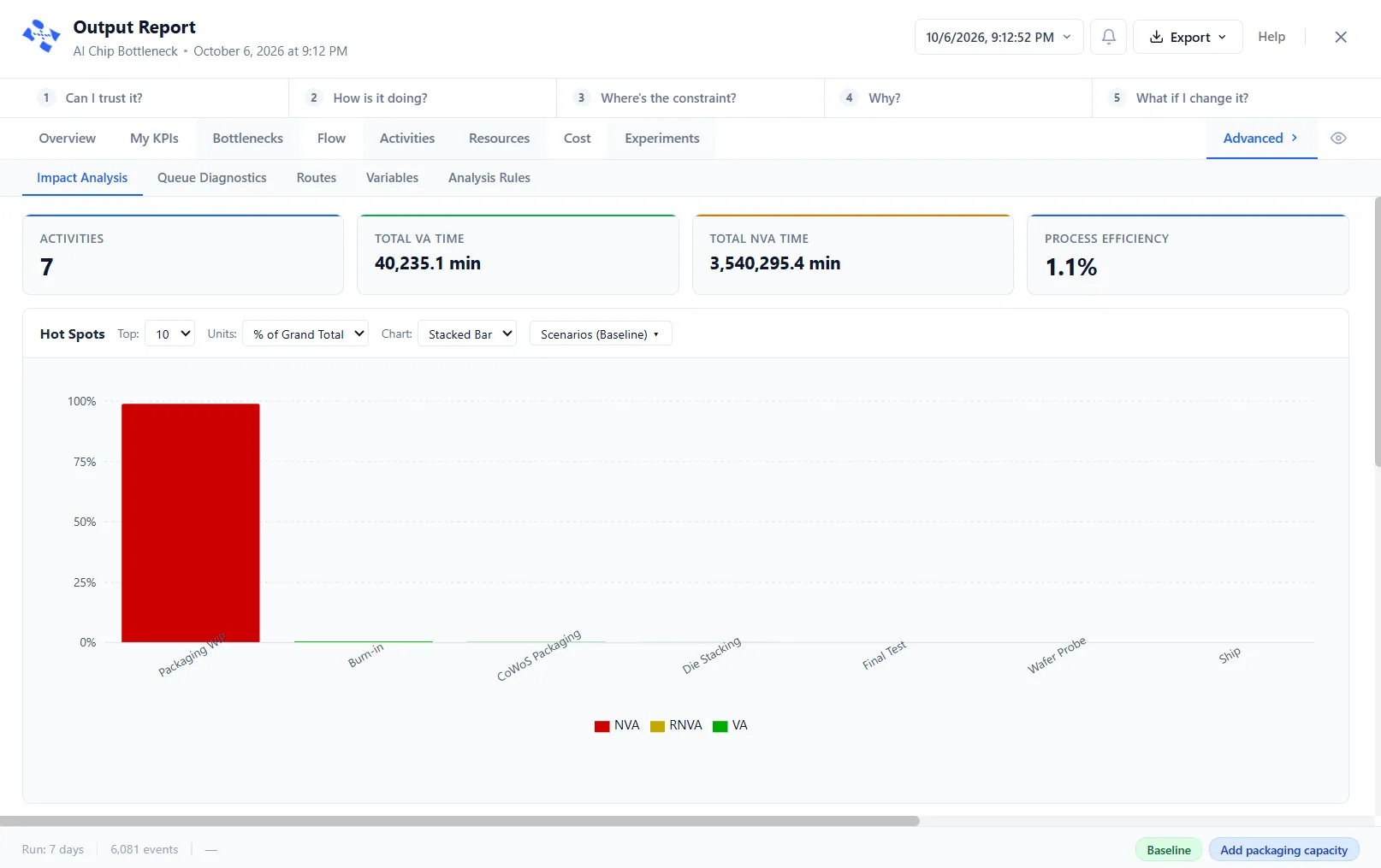
Section titled “The Hot Spots chart”The Hot Spots chart above the table shows the same ranking as bars. Three menus shape it:
- Top: how many activities to chart, 5, 10, 15, 20 or All. It starts at 10.
- Units: % of Grand Total (the start), Minutes, Hours or % of Row.
- Chart: Stacked Bar (the start), which splits each activity’s time into VA, RNVA and NVA; Pareto, bars of NVA minutes with a cumulative percent line; or Waterfall, each activity’s contribution with a running total.
When the model has scenarios, a Scenarios button also appears, to choose the scenario the chart reads. Click a bar to highlight that activity’s row in the table. With nothing to chart, the panel says “No data to chart”.
Focus the view
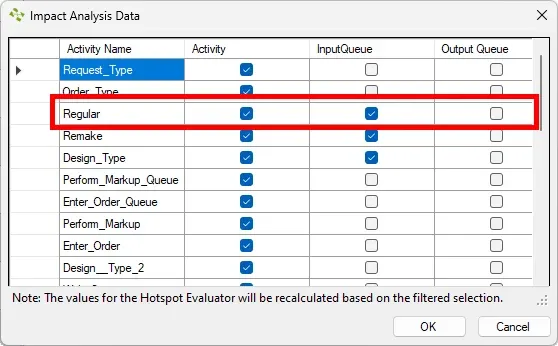
Section titled “Focus the view”Use Filters to remove items you do not want in the analysis; the Hot Spots chart recalculates for what is left, while the table keeps its full-model percentages. That lets you focus on one area, or simplify a busy model down to the parts that matter.
From bottleneck to fix
Section titled “From bottleneck to fix”Impact Analysis tells you where the waste is. When you know the step to attack but not the setting that clears it, PM Optimizer searches across the settings you choose, such as capacity or staffing, and reports the configuration that cuts the wasted time the most.
LegacyHow this worked in the previous version
Impact Analysis reveals which modifications will create the most significant improvements, helping you cut waste, enhance performance, and accelerate success.
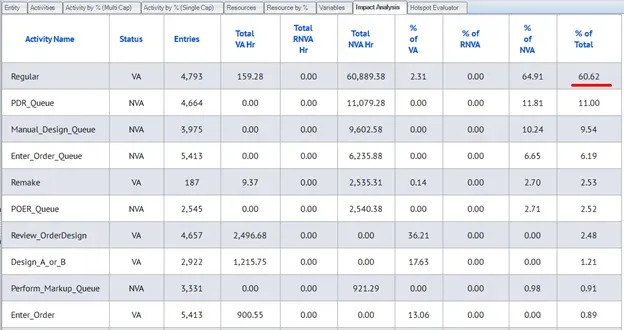
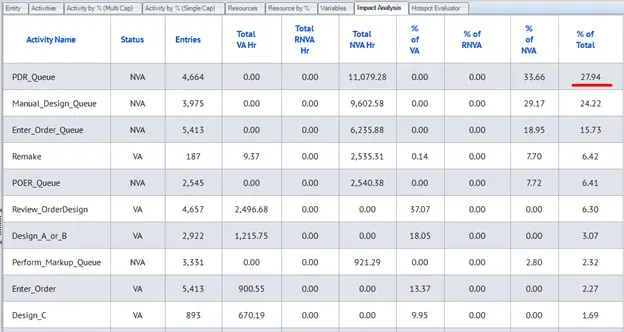
Impact Analysis provides a detailed breakdown of process components, including:
% of Value-Added (VA): Understand the proportion of tasks directly contributing to value creation.
% of Required Non-Value-Added (RNVA): Identify necessary but non-value-adding activities to optimize them.
% of Non-Value-Added (NVA): Highlight wasteful activities to eliminate.
% of Total: See the contribution of each activity type to the overall process.
% VA of Total: Analyze the share of value-added tasks within the total process.
% RNVA of Total: Measure the footprint of required non-value-added tasks.
% NVA of Total: Evaluate inefficiencies and waste in the process.
This granularity level ensures you have the insights needed to refine your processes and boost overall performance.
Customize item view
Section titled “Customize item view”Use the filter to remove unwanted items from the analysis and automatically recalculate the report. For example, an activity could simplify the model and represent the actual area.