
Navigating the canvas
The canvas is where you draw your model. A few built-in aids keep it readable as it grows, and the Arrange menu tidies it in one place.
Finding your way around
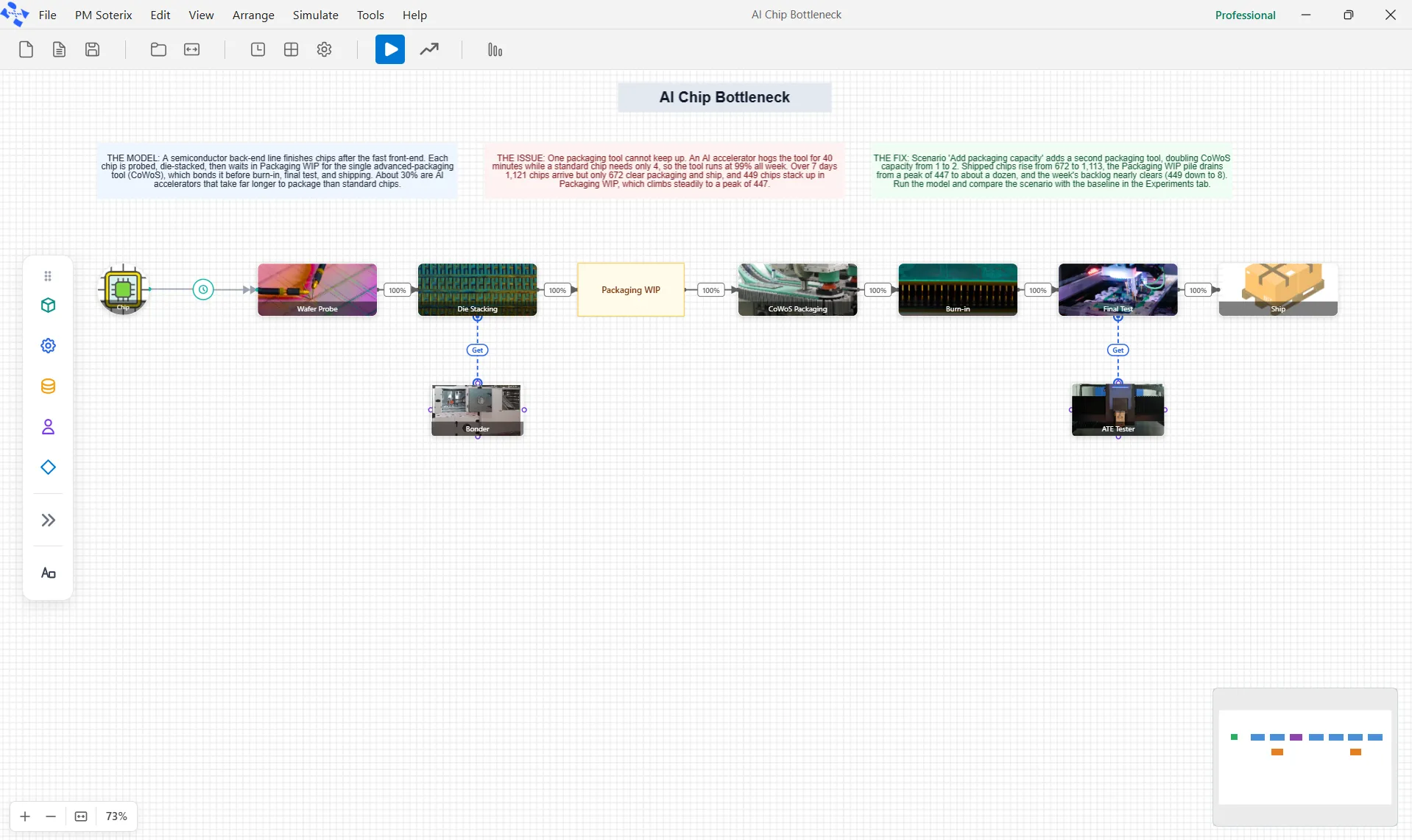
Section titled “Finding your way around”- Minimap: a small overview of the whole model sits in the corner, showing where you are and letting you jump straight to another part. It matters most once a model runs off the edge of the screen.
- Alignment guides: as you drag a shape, light lines appear when it lines up with the edges or centers of the shapes around it, so you can place it squarely without nudging.
- Auto-framing: the view can fit the whole model to the window, so you can pull back to the full picture and dive back in without hunting, and it re-frames on its own after a tidy.
- Zoom: the corner holds Zoom In and Zoom Out, which step the level by 5 percent, Fit to View, and a read-only percentage showing the current level. The mouse wheel zooms too.
Showing node details
Section titled “Showing node details”View ▸ Show Node Details reveals each node’s detail row on the canvas. On an Activity that is its queue capacities: InQ appears when the input queue is set above zero and short of unlimited, and OutQ when the output queue is above zero. The equivalent rows appear on Queue, Batch, Unbatch, Gate and Inventory nodes. Those rows also appear on their own during a live run even with the toggle off, so the toggle means show them all the time, not only while the model is running.
The Arrange menu
Section titled “The Arrange menu”The Arrange menu gathers everything that tidies the layout.
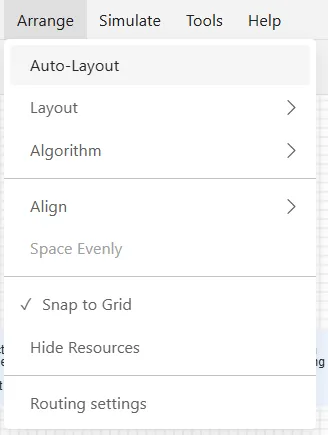
- Auto-Layout: rearranges the whole model into a clean flow in one click. See Auto-Layout.
- Layout: sets the direction of that flow, left to right, right to left, top to bottom, or bottom to top. Choosing a direction lays the model out at once, using the Algorithm you have chosen.
- Algorithm: chooses the method used to pack the shapes into rows, Dagre (Layered) or ELK (Layered).
- Align: lines up the shapes you have selected, with two choices: Center (align X) and Middle (align Y).
- Space Evenly: spreads the selected shapes out with equal gaps between them. It needs three or more shapes.
- Snap to Grid: while on, shapes snap to the grid as you drag, so they stay lined up.
- Hide Resources: hides the resource shapes to declutter the flow, and shows them again.
- Routing settings: tunes how the connecting lines are drawn. See Routing settings.